Viewing the check in log
The Check in log page allows you to view historical records of all user check-ins and checkouts for your makerspace, including detailed information about tool usage during each session.
Overview
The Check in log provides:
- Complete history of all check-in and checkout events
- User information for each session
- Tool usage details for each session
- Date range filtering
- Pagination for large datasets
- Session duration tracking
Accessing check in log
- Navigate to Pinpoint
- Sign in using UMD CAS
- Click 'Adminland' in the upper right corner
- Select your space from the list
- Open Admin tools, then Check in log
Using the check in log
Viewing records
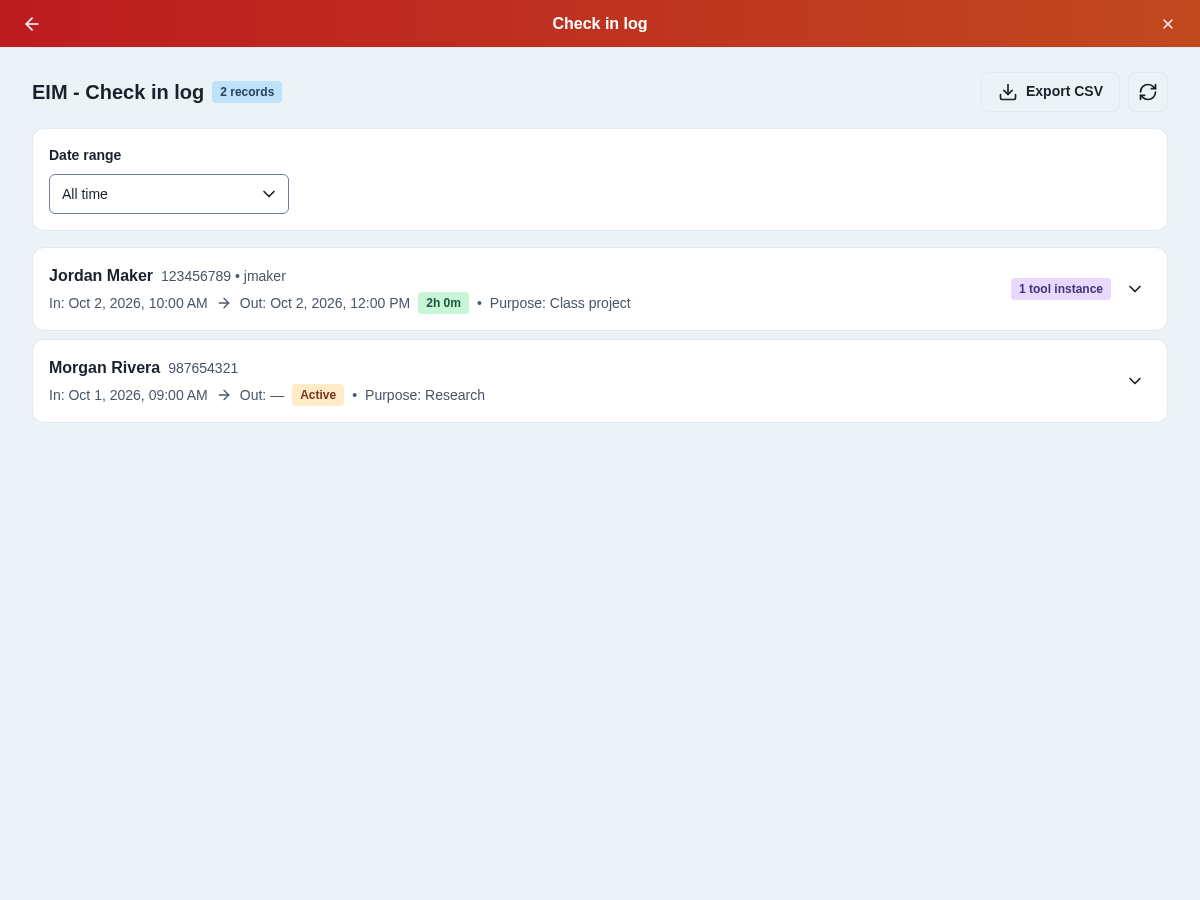
The check in log displays:
- User information: Name, UID, and directory ID when available
- Check-in and checkout times: When the user checked in and out
- Session Duration: How long the user was active
- Purpose: The check-in purpose selected for the visit, when provided
- Status Indicators:
- Green badge for completed sessions
- Orange badge for active sessions
- Yellow "Auto" badge for automatically ended sessions
- Tool instances used: Number of tool instances used during the session
Filtering by date range
Choose a preset such as Today, Last 30 days, or Year to date. For specific dates, choose Custom range, enter the start and end dates, then select Apply. Choose All time to show all records.
Viewing tool instance details
To see which tool instances were used during a session:
- Click on any check in log entry to expand it
- View the list of tool instances used
- See the reason for each tool usage (if provided)
Pagination
When viewing large datasets:
- Use the "Previous" and "Next" buttons to navigate between pages
- The pager shows the current page and record range; use its page selector to jump to another page
- Each page displays up to 50 records
Exporting CSV
Select Export CSV beside Refresh to download all records matching the applied date range, including records on other pages. The file includes the space, name, UID, directory ID, check-in and end times, duration, end method, check-in purpose, and tool instances used. Active sessions have no end time or completed duration.
Refreshing data
Click the refresh icon in the top right corner to reload the latest check in log data.
Understanding session information
Session status
- Active Session: Shows "Active" duration and orange badge - user is currently checked in
- Completed Session: Shows duration in hours/minutes and green badge - user has checked out
- Automatic checkout: Yellow "Auto" badge indicates the session was automatically ended by the system
Tool usage history
Each expanded session shows:
- Tool instance names used during the session
- Reason for tool usage (if provided)
If no tool instances were used during a session, the expanded view will indicate "No tool instances used during this session".
Use cases
- Audit Trail: Review who accessed the space and when
- Usage Analysis: Understand patterns of space usage
- Troubleshooting: Investigate specific user sessions or tool usage
- Compliance: Track access for reporting or security purposes