Managing users
Space admins can search for Pinpoint users, inspect their badge connection and access, and view their visit history.
Search for a user
- Open Adminland, select your space, and open Admin tools.
- Open Find a user.
- Search by first or last name, UID, or directory ID.
- Select a user from the results to open their details.
View user details
The details page includes the user's name, UID, directory ID, email, admin status, visit history, and badge information.
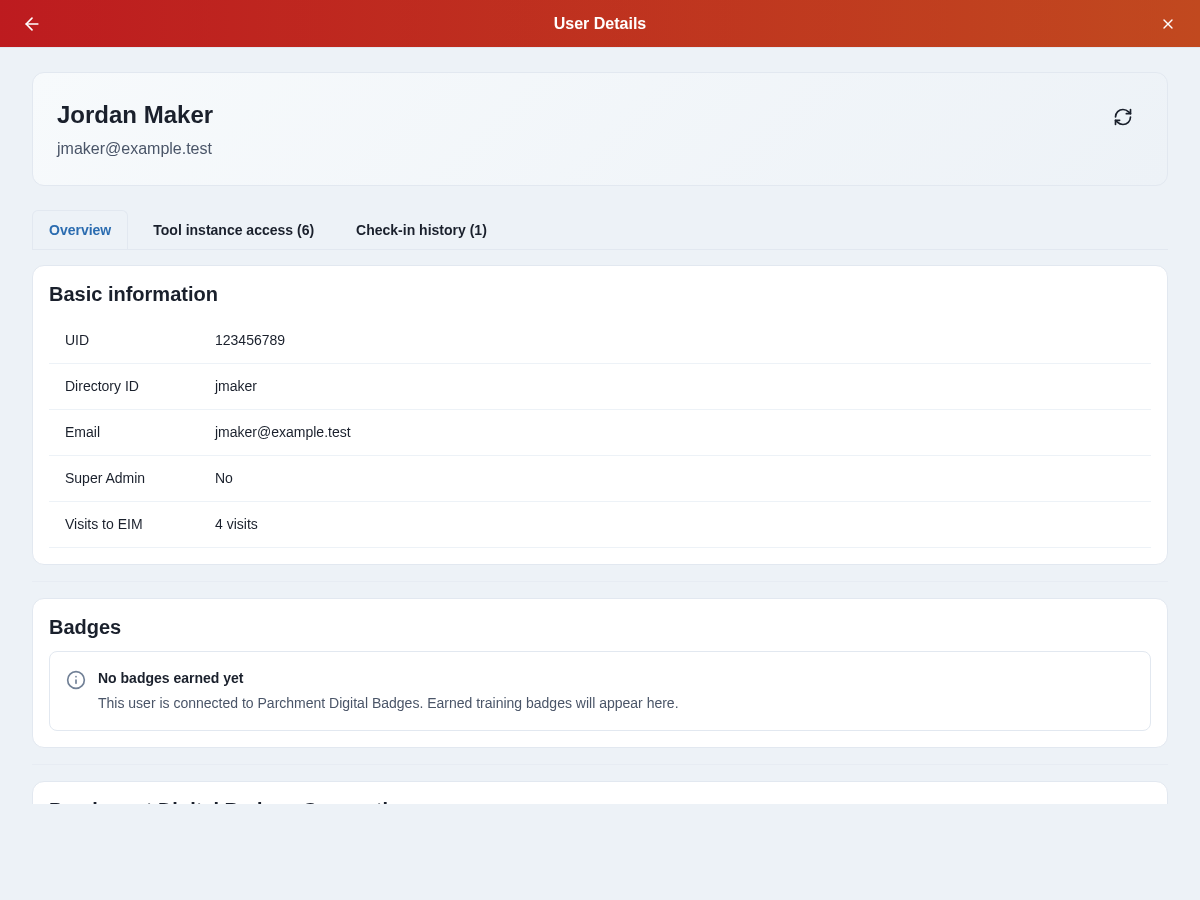
The badge section distinguishes a missing connection, a connection whose badges could not be loaded, and a successful connection. Earned badges known to Pinpoint appear in the list; additional badges may be available in the dropdown.
If badges cannot be loaded, check the connection and displayed error before purging the user's connection. A successful connection does not by itself mean the user has earned a badge required for a particular tool.
View tool instance access
Open the Tool instance access tab to inspect which tool instances the user can access and the badge requirements for their tools.
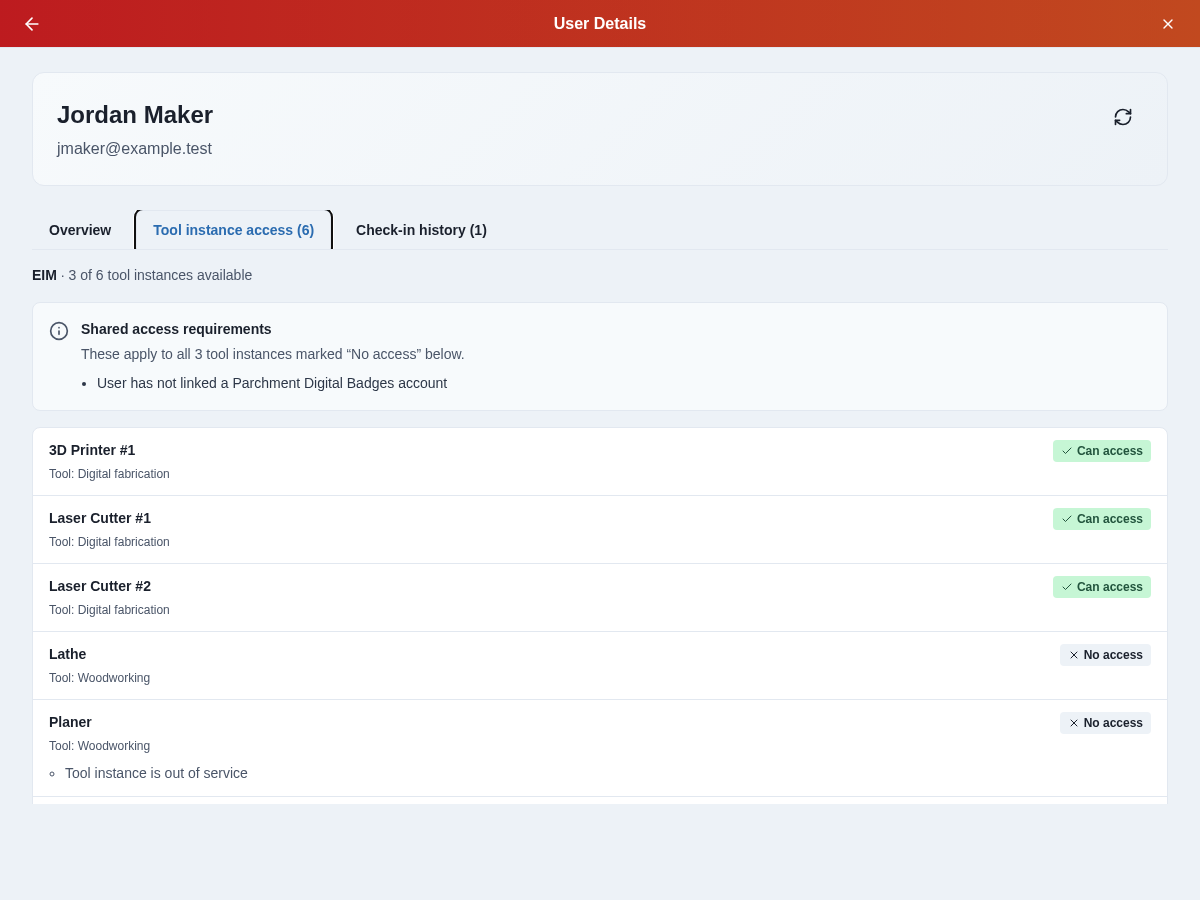
A tool defines shared equipment and training requirements. A tool instance is an individual unit in a space. A user's space admin permissions describe which spaces they administer; they do not describe equipment access.
View visit history
Open Check-in history to see when the user checked in and out, including visits ended by automatic checkout.
Purge a badge connection
Super admins can use Purge badge connection for a connected user who needs to disconnect their badge accounts from Pinpoint and reconnect. If this action is unavailable to you, ask a super admin to review the connection.
- Open the user's details and review their connection status and earned badges.
- Select Purge badge connection.
- Read the confirmation, then select Purge connection to proceed or Cancel to keep the connection.
- After a successful purge, ask the user to reconnect their badge account from their profile.
This forcibly unlinks all of the user's badge accounts from Pinpoint and removes legacy connection credentials. They will need to reconnect to use tools that require badges. Badges in their provider account are not deleted.
Admin user details no longer display a badge API key or offer a reveal action. Use connection status, badges, and Tool instance access to troubleshoot access.
See Pinpoint terminology changes for the other updated labels.