Viewing space statistics
The Space Statistics page provides comprehensive usage analytics for your makerspace, including session counts, user metrics, tool instance usage patterns, and daily activity breakdowns.
Overview
The Space Statistics page provides:
- Summary statistics (total sessions, unique users, hours, average session time)
- Top tools during the selected period
- Daily activity breakdown with visual progress bars
- Date range presets and custom start and end dates
- Automatic checkout tracking
Accessing space statistics
- Navigate to Pinpoint
- Sign in using UMD CAS
- Click 'Adminland' in the upper right corner
- Select your space from the list
- Select
Admin Tools - Select
Space Statistics
Using space statistics
Selecting a time period
Choose a preset from Date range, such as Last 7 days, This month, or Year to date.
For a custom period:
- Choose Custom range.
- Enter the start and end dates.
- Select Apply.
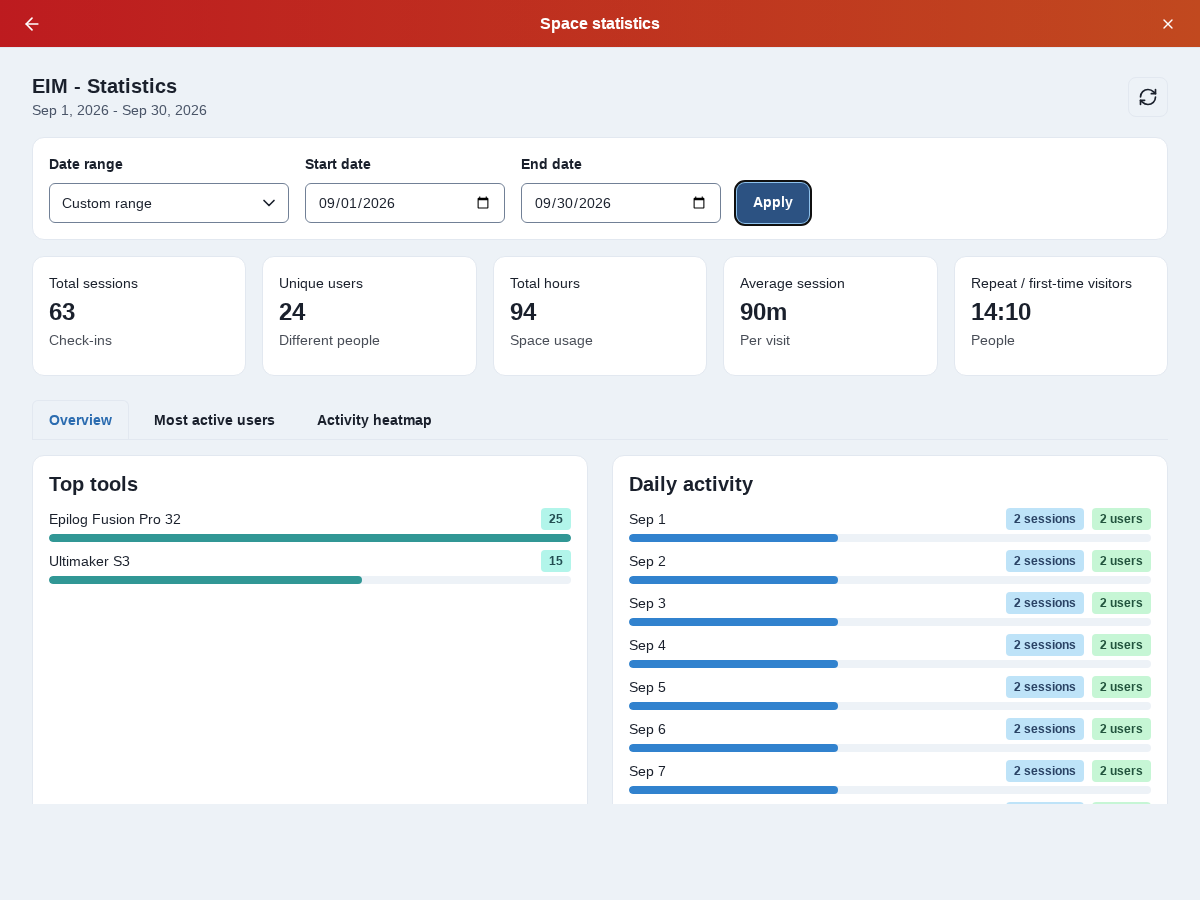
Understanding summary statistics
The summary cards display:
- Total Sessions: Number of check-ins during the selected period
- Unique Users: Number of different people who used the space
- Total Hours: Cumulative hours of space usage
- Average session: Average length of each visit
- Repeat / first-time visitors: Counts of returning and new visitors
Top tools
This section shows:
- Tool instances most frequently used during the period
- Usage count for each tool instance
- Visual progress bars indicating relative usage
- Tool instances sorted by usage frequency
The progress bars are relative to the most-used tool instance, making it easy to compare tool instance popularity at a glance.
Daily activity breakdown
The daily activity section provides:
- Day-by-day breakdown of space usage
- Number of sessions per day
- Number of unique users per day
- Visual progress bars showing daily activity levels
Each day shows:
- Date in a readable format (e.g., "Jan 15")
- Session count badge
- Unique user count badge
- Progress bar indicating activity level relative to the busiest day
Automatic checkout information
If any sessions were automatically checked out during the selected period, an informational alert will appear showing the count of automatically ended sessions.
Refreshing statistics
Click the refresh icon in the top right corner to reload the latest statistics data.
Statistics are calculated in real-time based on your check in log data. Use the refresh button to ensure you're viewing the most current information.
Use cases
- Usage Trends: Identify peak usage times and patterns
- Resource Planning: Understand which tool instances are most popular
- Capacity Analysis: Track growth in space usage over time
- Reporting: Generate usage reports for stakeholders
- Optimization: Identify underutilized tool instances or peak usage periods
Best practices
- Use Last 7 days for recent activity analysis
- Use This month for monthly reporting
- Use Last 12 months for long-term trends
- Use Custom range for specific events or comparison periods
- Compare different time periods to identify trends