Kiosk user flow
The kiosk records visits and tool usage. The step order is fixed; space admins can configure purposes and skip purpose entry or tool selection, but cannot reorder the steps. Users swipe their UMD ID card, choose a check-in purpose, select tools, and complete check-in. They swipe again to update usage or check out.
For kiosk setup or configuration changes, contact eds@umd.edu.
Step-by-step flow
1. Welcome screen
The welcome screen asks the user to swipe a UMD ID card. The card reader captures the card data automatically.
2. Card swipe and identity lookup
Pinpoint reads the card, looks up the UMD user, and loads their Pinpoint account. A loading indicator appears during lookup. If the card cannot be recognized or lookup fails, the user can try again.
3. First-time users: registration
A new user reviews their account information and creates an account before continuing.
4. Select check-in purpose
The user selects a check-in purpose configured by the space, such as Class Project, Personal Project, or Research, and continues. The purpose and tool selections remain an unfinished check-in until the user completes the final step.
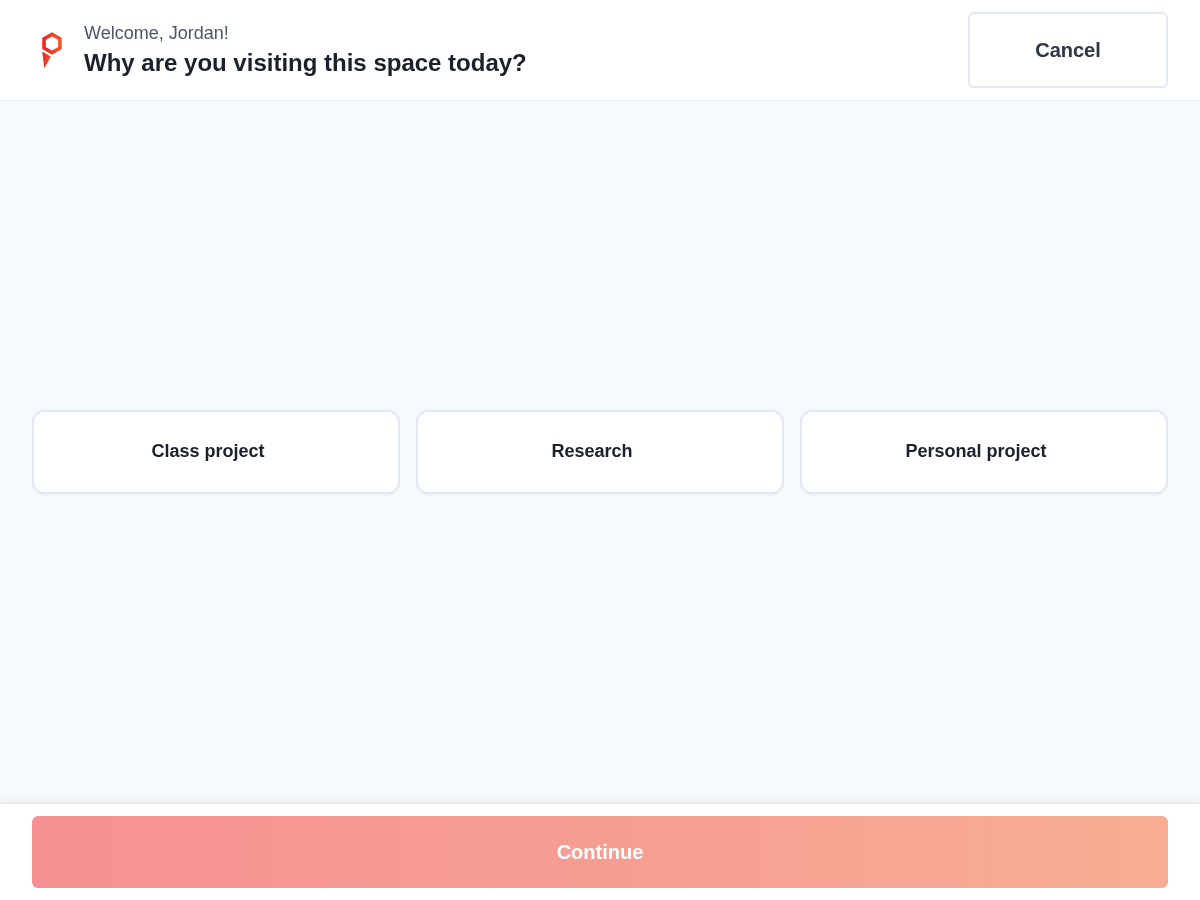
If the space has Skip tool selection enabled, users complete check-in on the purpose page. The visit records the purpose and duration without tool usage; the tool-selection step below is skipped.
If Skip check-in purpose is enabled or there are no active purposes, Pinpoint skips only the purpose step. These visits have no purpose or purpose-based session duration. Users still select tools when tool selection is enabled and tools are available. Check-in completes automatically only when no data-entry steps remain: purpose entry is skipped and either tool selection is disabled or no tools are available to the user. Loading failures offer a retry instead of skipping a step.
5. Select tools
Users select the tools they intend to use. Multiple selections are allowed and remain selected while browsing other categories or pages.
- Search by tool name or use the category filters. All categories clears the category filter and returns to the tool grid.
- Use the arrows outside the tool grid to move between pages.
- Choose Review selected in the footer to see the selected tools together. Choose All tools to return to browsing.
- Choose the single Complete check-in action when ready.
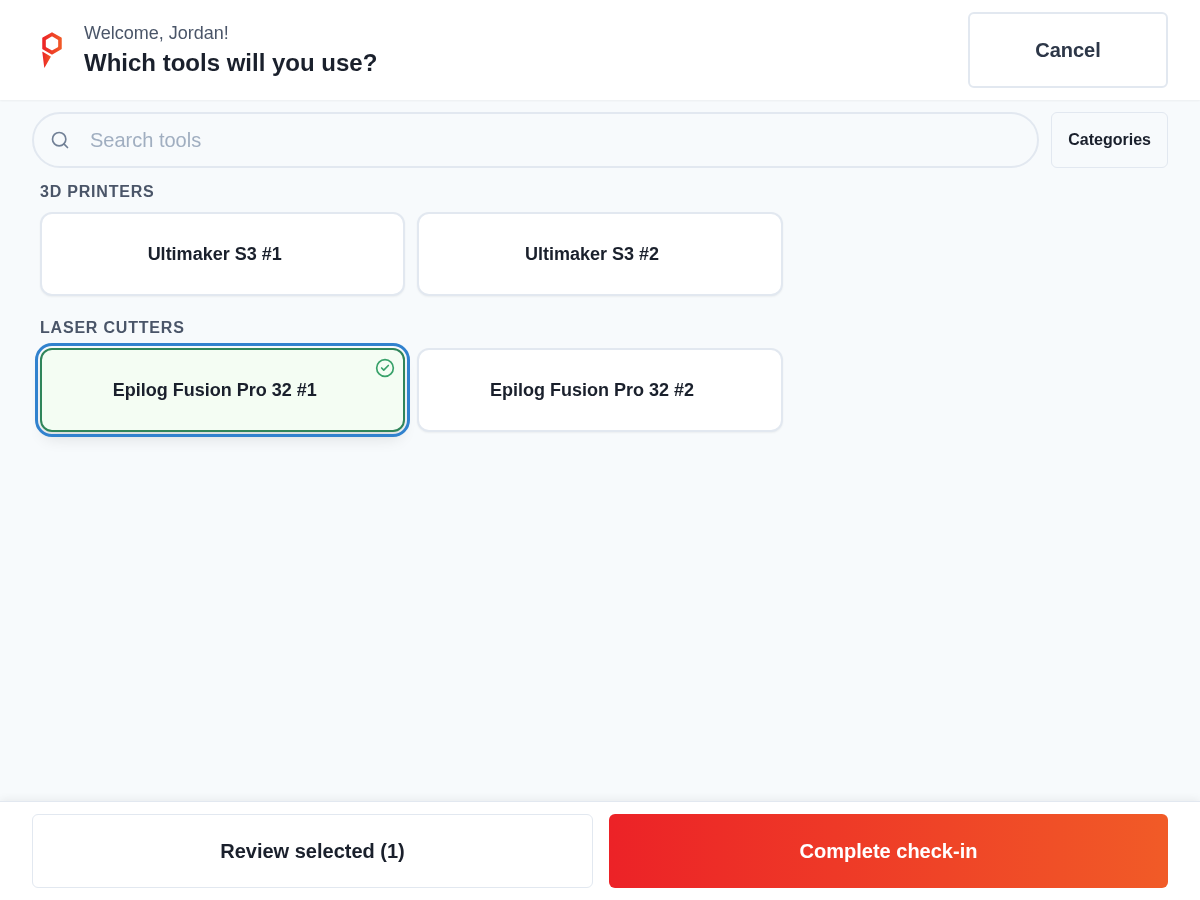
With Require tool selection enabled (the default), users must select a tool if at least one in the space is available to them. If none are available to that user across the full catalog, the same completion button reads Complete check-in without tools. A search or category filter with no results does not enable this option.
Require tool selection keeps Skip tool selection off and locked in Space settings. If the space turns Require tool selection off, users can choose Complete check-in without tools even when tools are available. They can still select tools to record their usage.
These selections record tool usage during the visit; they do not grant exclusive access to equipment.
6. Confirmation screen
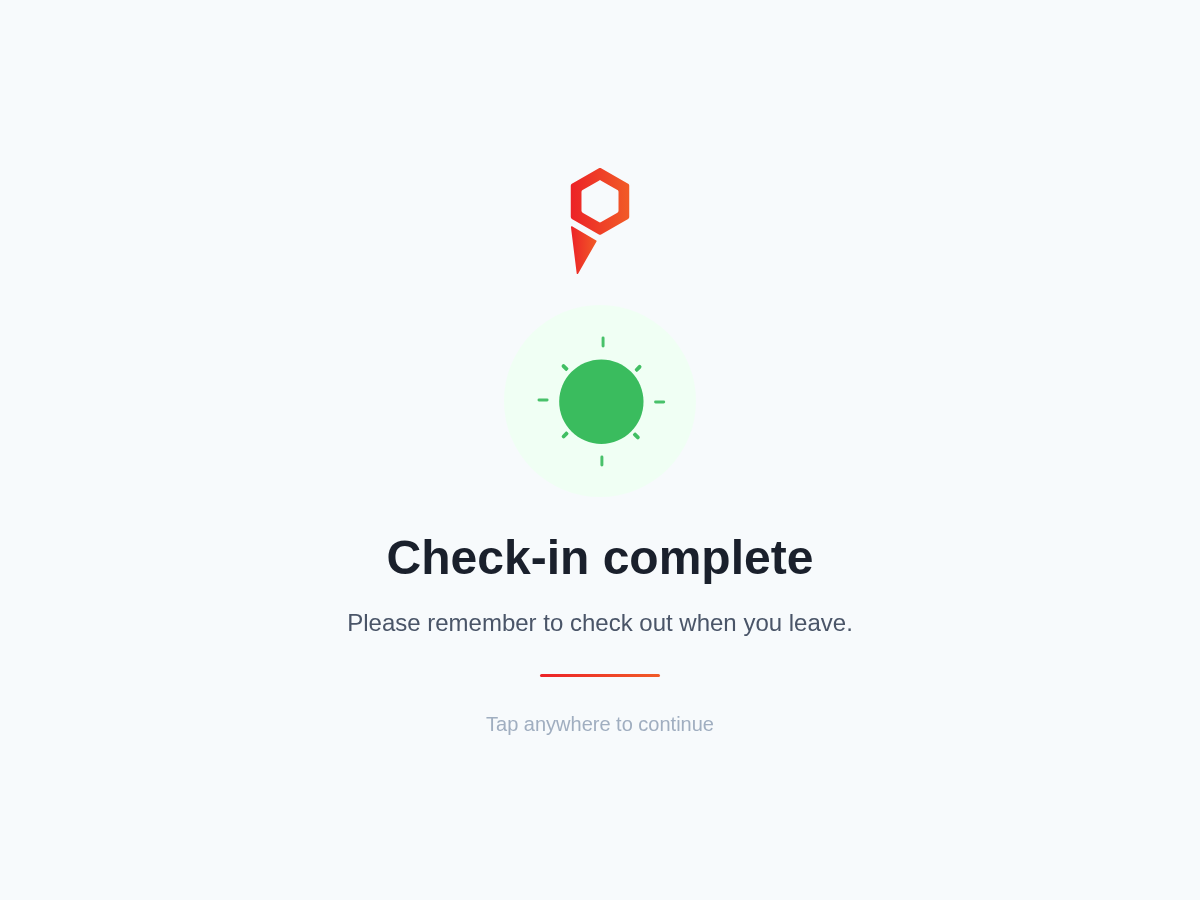
The kiosk displays Check-in complete, then returns to the welcome screen for the next user. This final step records the new visit and its selected tool usage together. If completion fails or the result is uncertain, use the offered retry. Retrying the same unfinished check-in does not create a second visit.
Cancel an unfinished check-in
Cancel discards the unfinished check-in and returns to the welcome screen. Choosing a purpose or selecting tools alone does not record a visit. If a user already has an active visit, cancelling an unfinished usage update leaves that visit and its recorded usage unchanged; only Check out ends it. The kiosk Cancel and header navigation buttons are disabled while completion is in progress. If the kiosk cannot confirm whether saving succeeded, follow its retry prompt before leaving.
Credential help
Selecting a tool that needs an additional credential opens Additional credential required. Review the credential details and any supplied information about how to earn it. Where the dialog says Earn one of these credentials, any one of the listed credentials satisfies that requirement. If earning instructions are unavailable, ask space staff; connecting an account alone does not award a credential.
Connection help follows the credential information. Use it to connect or reconnect the credential account containing an earned credential, following the displayed instructions on your phone. An out-of-service tool is unavailable regardless of credentials.
Check out or update tool usage
When a user with an active visit swipes again, they can choose:
- Check out — end the visit and return to the welcome screen after confirmation.
- Update tool usage — select additional tools during the same visit.
After selecting additional tools, the user chooses Save tool usage and sees Tool usage saved. This adds to the usage already recorded for their visit.
If no tools are available to select, Keep current tool usage returns without adding more tools. Otherwise, use Cancel when no changes are needed. Existing usage stays recorded and the visit remains active.
If a usage write fails, the selection remains available for retry. The user should retry saving rather than start a new visit.
Automatic checkout
If the previous visit ended through the space's scheduled automatic checkout, the kiosk shows a reminder on the next visit. The user acknowledges it and continues.
Idle timeout
After 90 seconds without interaction, the kiosk displays a warning with a 20-second countdown. The user can choose I'm still here to continue. Otherwise, the kiosk returns to the welcome screen.
Flow summary
| Current state | User action | Result |
|---|---|---|
| No active visit | Swipe, choose a check-in purpose, select tools, complete check-in | Visit and tool usage recorded |
| No selectable tools anywhere in the catalog | Choose Complete check-in without tools | Visit recorded without tool usage |
| Active visit, additional equipment needed | Update tool usage, then Save tool usage | Tools added to the existing visit's usage |
| Active visit, no changes needed | Cancel | Existing visit and usage remain |
| Active visit, leaving the space | Check out | Visit ends |
Cancelling before completion does not create a visit or remove an existing visit.