Kiosk troubleshooting
This guide covers common kiosk issues that space staff can resolve, and when to escalate to IT.
Card swipe issues
Nothing happens when a card is swiped
Possible causes:
- The magstripe reader is not connected or not recognized
- The card was swiped too quickly or too slowly
- The magnetic stripe on the card is damaged
Steps to resolve:
- Check that the USB card reader is firmly plugged into the ELO device
- Try swiping the card again at a steady pace — not too fast
- Try a different UMD ID card to rule out a damaged stripe
- If no card works, the reader may need to be reconnected or the device restarted (see Restarting the kiosk)
"Card not found" error after swiping
This message means the card was read successfully, but Pinpoint could not match it to a UMD user.
Possible causes:
- The card belongs to a non-UMD individual (visitor, contractor, etc.)
- The card's magnetic stripe data is corrupted or demagnetized
- The UMD card lookup service is temporarily unavailable
Steps to resolve:
- Ask the user to try swiping again — sometimes a second attempt succeeds
- If the error persists, the user can log in at https://pinpoint.umd.edu using their UMD CAS credentials instead
- If the UMD lookup service appears to be down (multiple users failing), contact IT
"Too many swipes in a short time" error
Pinpoint rate-limits swipe lookups to prevent abuse. This error appears if multiple swipes are submitted within a very short window.
Steps to resolve:
- Wait 30–60 seconds and try again
- If the error repeats, restart the kiosk app (see below)
Configuration issues
Kiosk cannot load or shows an authentication error
Contact eds@umd.edu with the makerspace name, kiosk location, and the error message.
Kiosk is showing data for the wrong space
Contact eds@umd.edu to correct the kiosk's configuration before using it for check-ins.
Device & display issues
Kiosk is frozen or unresponsive
Steps to resolve:
- Wait 10–15 seconds — some operations (like the UMD card lookup) may take a moment
- If still frozen, power-cycle the device by holding the power button until it shuts off, then press it again to restart
Kiosk is stuck mid-flow (past the welcome screen) with no user present
The idle timeout should return the kiosk to the welcome screen after 90 seconds of inactivity. If it hasn't:
- Wait for the 20-second countdown to expire — the kiosk will reset automatically
- If the display is completely frozen, restart the device
Restarting the kiosk
Space staff can power-cycle the device to recover from most frozen or unresponsive states:
- Hold the ELO power button until the device powers off
- Press the power button again to restart
- Confirm that the kiosk returns to the Pinpoint welcome screen
If a restart doesn't resolve the issue, contact IT — they have access to the ELO admin tools for deeper troubleshooting.
Review failed check-ins
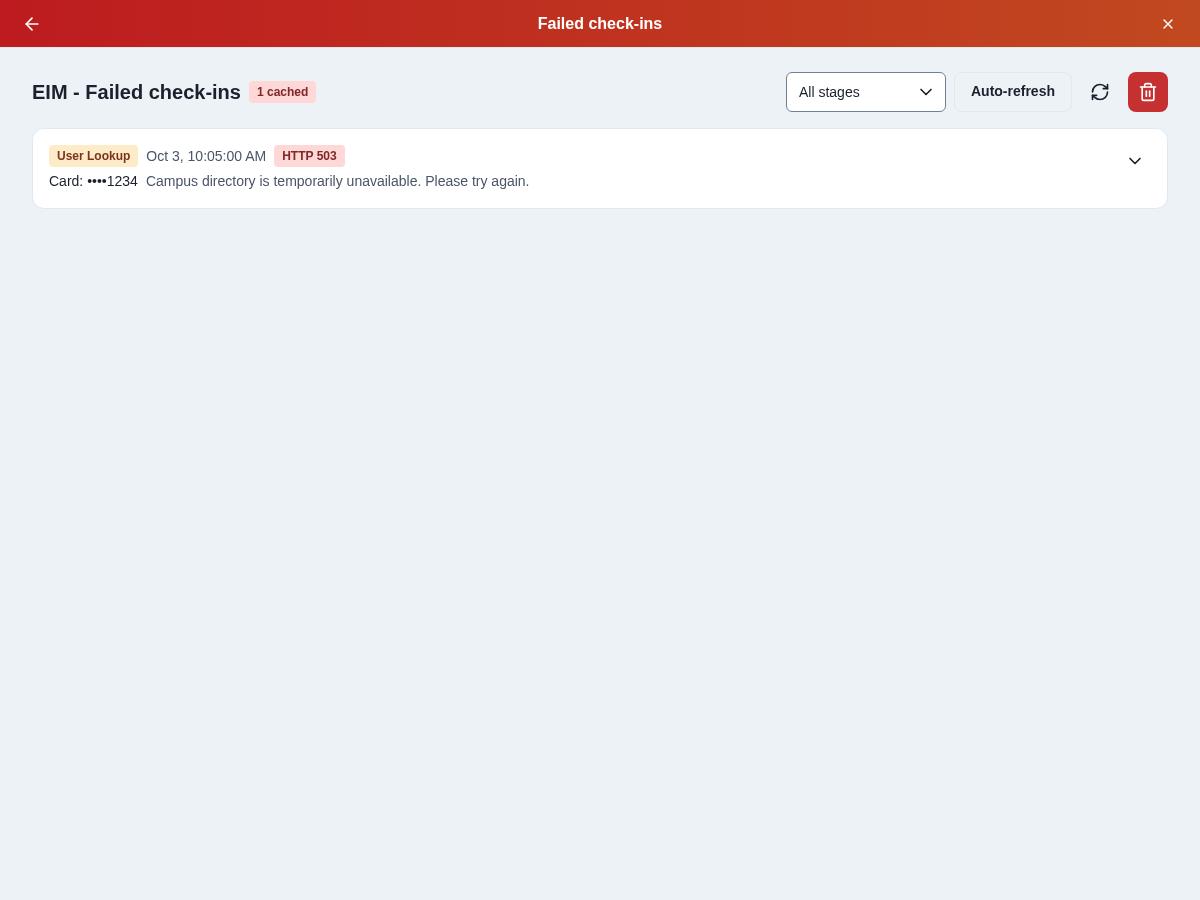
Sign in to Pinpoint, open Adminland, select the space, then open Admin tools → Failed check-ins. Review the failure stage, message, and time to identify repeated lookup or connection failures.
When to contact IT
Contact eds@umd.edu if:
- Multiple users are unable to swipe in and the UMD lookup service may be down
- The kiosk needs to be configured or moved to a different space
- The ELO device hardware is damaged or not turning on
- The card reader needs to be replaced