Tools and Parchment Digital Badges
Pinpoint uses tools to define equipment and its training requirements, and tool instances to identify individual units in a space. Badge requirements attach to the tool, so the same training can grant access to tool instances across participating spaces.
Tool categories serve a different purpose: they organize tool instances for browsing within a space and do not determine training requirements.
Concepts and definitions
Parchment Digital Badges
Parchment Digital Badges can be awarded when a student completes a Canvas module. Pinpoint checks a user's earned badges against the badge requirements for each tool.
Canvas supports automatically awarding badges on module completion. When a Canvas course is connected to a Parchment Digital Badges group, enrolled users and their earned badges can be associated with that group.
To set up your makerspace, coordinate with a Makerspace Initiative administrator to register your course with a group under the Makerspace Initiative Issuer in Parchment Digital Badges.
Tools
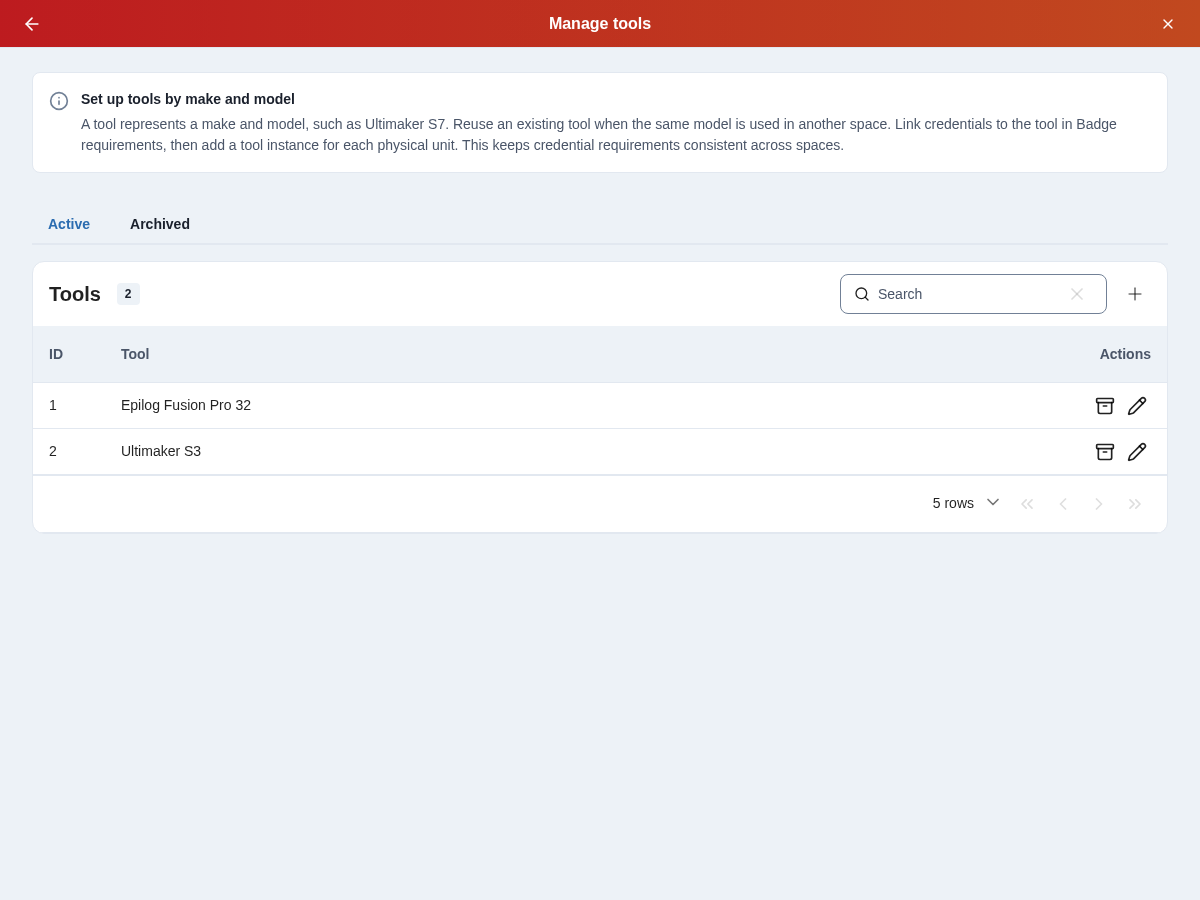
A tool is a shared equipment definition, such as “Ultimaker S3.” Every tool instance belongs to a tool and a space. Tool instances assigned to the same tool share its training requirements, even when located in different spaces.
Prefer one tool definition per equipment make and model so credentials map cleanly to it. Reuse that definition for matching physical units across spaces. Coordinate with affected space managers before changing an existing shared definition or its requirements.
Badge requirements
A badge can grant access to multiple tools, and a tool can accept multiple badges.
When several badges are associated with a tool, earning any one of those badges satisfies its badge requirement. Users do not need to earn all of them.
If your training requires several modules, combine the material into one module or configure prerequisite modules in Canvas and award the badge on completion of the final module.
Earning access to tools
- Enroll in a participating Canvas course, such as the Terrapin Works ELMS course.
- Complete a module that awards the required badge.
- Connect your Parchment Digital Badges account to Pinpoint.
- During check-in, select the tools you intend to use. Pinpoint checks the badge requirements when the space has badge integration enabled.
Available tools can be selected; those the user cannot access appear unavailable.
Assigning tool instances to tools
Create a shared tool for a make and model, then add a tool instance for each physical unit. For example, “Ultimaker S3” can have instances named “Ultimaker S3 #1” in one space and “Ultimaker S3 #2” in another.
A training credential may grant access to several different tools when appropriate. Link it to each relevant tool rather than combining unrelated equipment into a new generic tool definition.
| Training relationship | Example |
|---|---|
| Canvas module awards a badge | Complete an approved introductory 3D printing module |
| Badge satisfies a tool's requirement | Link the earned credential to “Ultimaker S3” |
| Tool instances use that tool | Individual Ultimaker S3 printers in participating spaces share those requirements |
Getting started
Follow the Parchment Digital Badges setup guide to coordinate training, shared tools, and integration for your space.