Getting setup with Parchment Digital Badges
Parchment Digital Badges records credentials earned through makerspace training. Pinpoint checks the required badges when a space enables badge integration. Ask space staff how to earn a tool’s required credential.
Overview
Before you can use equipment in spaces that require Parchment Digital Badges:
- Complete the required training specified by the space, such as a Canvas module
- Earn the corresponding badge
- Connect your Parchment Digital Badges account to Pinpoint
Connect the account containing your earned badges. Pinpoint can then check those badges against tool requirements. If the connection expires or is removed, reconnect it from your profile.
Connecting your account
Step 1: log into Pinpoint
Sign in to Pinpoint using your UMD credentials (CAS login).
Step 2: access your profile
After signing in, open your profile page.
Step 3: connect your badges account
-
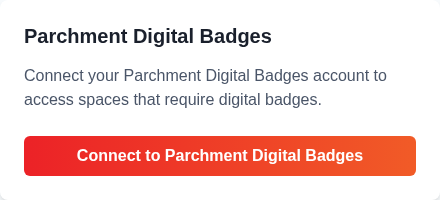
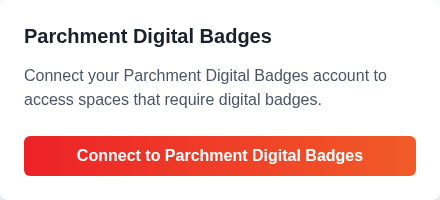
Find the Parchment Digital Badges section.
-
Select Connect to Parchment Digital Badges (or Reconnect if an earlier connection has expired).
-
Follow the provider's sign-in prompts for the account containing your makerspace credentials.
-
Review and authorize the requested access. Complete any terms or consent prompts the provider presents.
-
Return to Pinpoint and check for the connection confirmation.
Provider sign-in and consent screens can vary with your institution and existing session. If the returned account does not contain the expected credentials, ask space staff or eds@umd.edu for help.
Your Pinpoint account is now connected to Parchment Digital Badges. Pinpoint can check your earned badges against tool requirements. Connecting does not earn a badge or make an out-of-service tool available.
Using your badges
After connecting your account:
- Follow the space’s training instructions to earn required badges
- Badges satisfy the training requirements for tools
- Your permissions work across all participating spaces
- You can see which tools you have access to when checking into a space
If a tool displays Additional credential required, review the named credential and any provided earning instructions. If those details are unavailable, ask space staff. Account connection help appears separately after the credential information.