Managing badge requirements for tools
Link a credential to a shared tool so Pinpoint can recognize the training required to use its physical instances. You need superadmin access to add or remove requirements.
Before you begin
- Create or identify the shared tool definition, preferably matching the equipment make and model.
- Coordinate with the affected space managers: the requirement applies across spaces using that tool and badge integration.
- Make sure the credential exists in the provider catalog. If the credential is missing, contact eds@umd.edu.
Add a requirement
-
Open Adminland, select a space and choose Badge requirements.
-
Read the notice about requirements shared across spaces and continue.
-
Choose Add badge requirement using the plus (+) action.
-
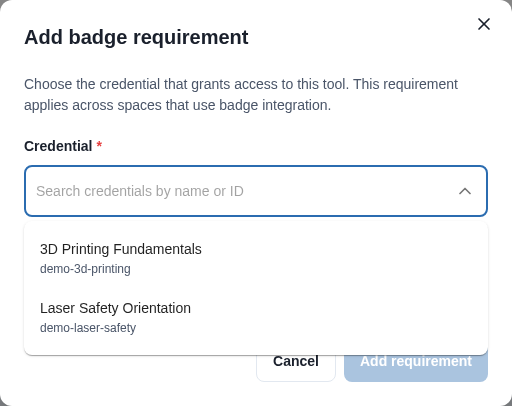
Search Credential by name or ID. Each option shows the credential name with its ID beneath it; select the intended credential.
-
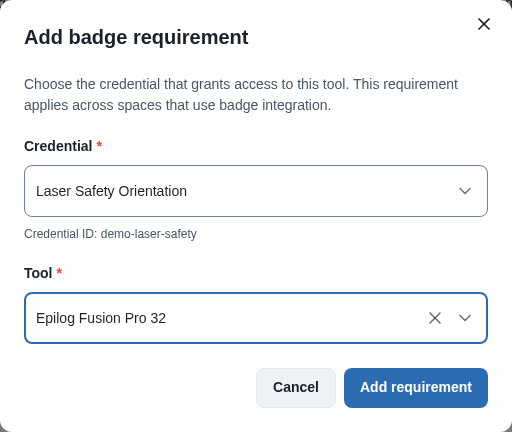
Search Tool and select the shared equipment definition.
-
Choose Add requirement. A confirmation appears and the new relationship is listed.
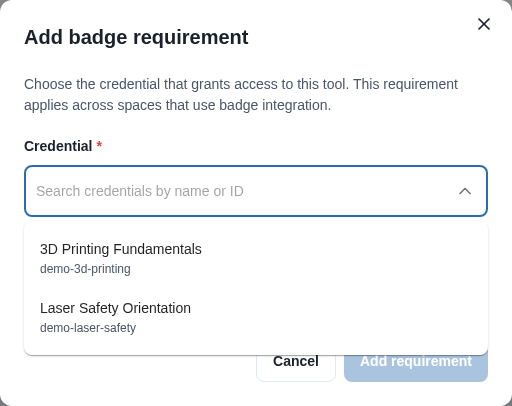
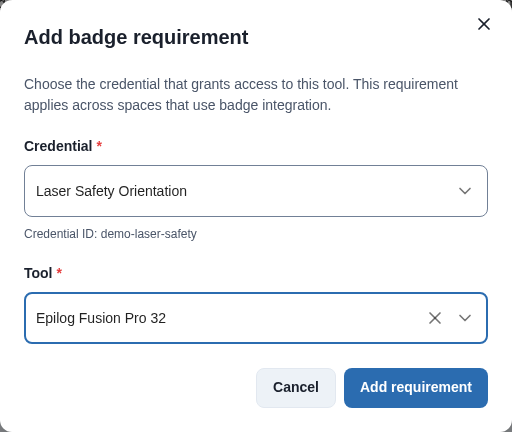
You do not need to copy a badge ID from provider JSON or type an exact tool name. If loading fails, choose Try again before making your selections. Pinpoint keeps selected values if saving fails.
Remove or replace a requirement
Choose Remove badge requirement on the relevant row. Review the named badge and tool, then choose Remove requirement or Cancel.
Removal deletes only the requirement. It does not delete the credential from the provider or remove users' earned badges. There is no inline edit action for changing the linked records; remove the incorrect relationship and add the intended one.
Requirements are shared across spaces. Removing a row can change who has access to instances of that tool, so coordinate the change with affected space managers.
Troubleshooting
- No matching credential: clear the search and check that the correct issuer/catalog is configured with the Engineering Digital Service.
- Choices could not be loaded: retry. If the problem persists, contact EDS.
- Credential already linked: find the existing row rather than adding a duplicate.
- Add or remove is unavailable: verify you have superadmin permissions.
Contact eds@umd.edu for assistance. Do not send service credentials, user tokens or other secrets.