Set your profile photo
Pinpoint uses Gravatar to display profile photos. Gravatar is a free service by Automattic (the makers of WordPress) that links a profile photo to your email address. Once set up, your photo appears automatically in Pinpoint and any other site that supports Gravatar.
How it works
- Pinpoint looks up your profile photo using the email address on your account
- If you have a Gravatar linked to that email, your photo is displayed
- If not, your initials are shown instead
Setting up your Gravatar
- Go to gravatar.com/profile
- Create a free account or sign in — use the same email address you use in Pinpoint
- Upload a photo
- Your photo will appear in Pinpoint automatically the next time the page loads
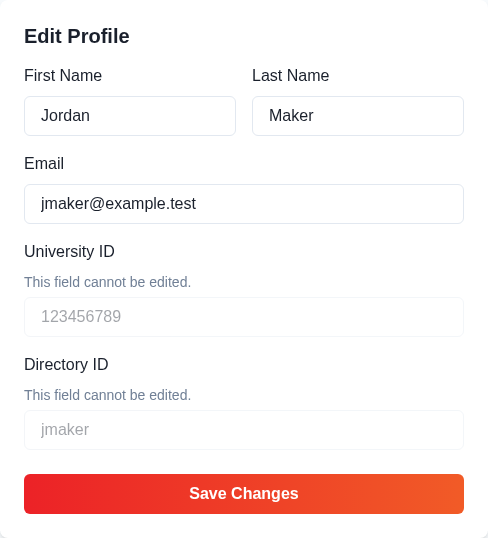
Not sure which email you use in Pinpoint? Check the Email field on your profile page.
Changing or removing your photo
To update your photo, sign in to gravatar.com/profile and upload a new image. To remove it, delete the image from your Gravatar account and Pinpoint will revert to showing your initials.
Privacy
Pinpoint requests an image from Gravatar using a hash of the normalized email address on your profile, rather than the address itself. That request can occur even when no Gravatar exists; an unsuccessful image lookup falls back to your initials. Gravatar receives the image request and associated request metadata. A hashed email address is not anonymous, so consider this when deciding which email to associate with your profile.
FAQ
Do I need a Gravatar account to use Pinpoint? No. A Gravatar is completely optional. If you don't set one up, your initials will be displayed as your avatar.
I set up my Gravatar but it's not showing. Make sure the email on your Gravatar account exactly matches the email on your Pinpoint profile. It may also take a few minutes for Gravatar's servers to update.
Where does my photo appear? Your Gravatar photo is shown on your profile page, in the navigation bar, and on the space status display when you're checked into a space.